Shift Plan (Day Planner)
In one sentence: Plan who works when in your unit, record absences, schedule daily checklists, and see at a glance where the plan has gaps or clashes. Menu: Day Planner · Status: Live
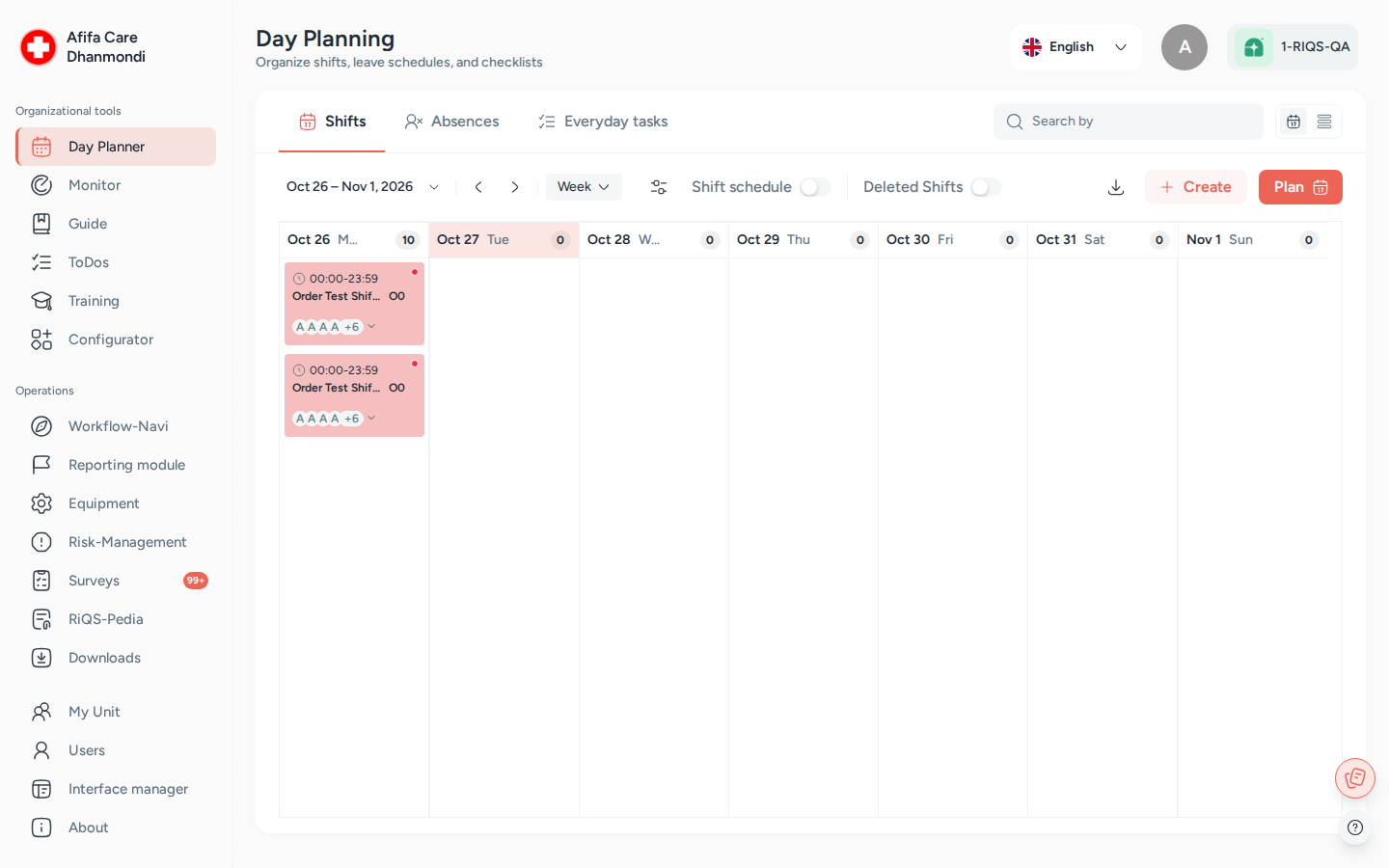
Day Planner, tab Shifts: the week view with planned shifts. Screens show test data.
What it is
Every unit needs to know who is on duty, who is away, and which routine jobs must be done each day. The Shift Plan (also called the Day Planner) is the unit's shared planning board for all of this.
Think of it as a wall calendar that also hands out the work. You first set up shifts once (for example "Early shift", "Late shift"), then place them on the calendar and assign people. A shift can carry a guide, documents and forms, so the people on that shift know exactly what to do. On the day itself, RIQS puts each person's shift tasks and checklists into their Cockpit automatically.
The same page also handles absences (holidays, sickness, training days) and checklists (short lists of everyday tasks). Because shifts and absences live in one place, RIQS can warn you when someone is planned for a shift while they are absent, inactive, or already on another shift.
The page has three tabs: Shifts, Absence and Checklist. Each tab can be shown as a calendar (Day, Week, Month) or as a list. The Shifts tab also has a Shift schedule grid: people down the side, days across the top.
Key terms
| Term | Meaning |
|---|---|
| Shift | A reusable shift definition, set up once. It has a name, an abbreviation, a display colour, and optionally default time slots, a guide, documents and forms. |
| Regular shift | A planned shift based on one of the shift definitions. It can be one day or repeating (daily, weekly, monthly, yearly). |
| Special shift | A one-off task with its own title, date, colour and optional time span, for example an equipment maintenance or validation. |
| Time span | Start and end time of a shift. A shift can have several time slots. They are shown together on one shift card. |
| Absence type | A category of absence, such as "Holiday". It has a name, abbreviation, colour and a scope: Unit or Organization. |
| Standard absence | An absence of an Organization-scope type. It is created in every unit the person belongs to. |
| Checklist | A reusable list of everyday tasks (with descriptions, colour, and optional guide). You schedule it for a date and people. Inside the app it is sometimes called a "quick task" or "everyday task". |
| Individual guide / Collaborative guide | How a guide attached to a shift or checklist is completed: each person completes their own copy (individual), or the team completes one copy together (collaborative). With an individual guide you can also tick Must be completed by all users. |
| Conflict | A planning problem RIQS has detected, for example a shift with nobody assigned. |
| Change log | The history of changes made to a shift after its date has passed. |
Who uses it
| Role | What they typically do here |
|---|---|
| RiQS Administrator | Supports clients. Can see and plan across all organisations. |
| Group Administrator | Plans and oversees the units of the organisations in the group. Can set up organisation-wide absence types. |
| Administrator | Plans across all units of the organisation. Approves absences. |
| Power User | Runs the unit's planning: sets up shifts and checklists, plans the month, approves absences, resolves conflicts. |
| Management | Plans shifts and checklists for the unit, enters absences for others, and approves or rejects absences in the unit. |
| Professional | Sees the plan and its conflicts, completes their shift tasks and checklists, and requests their own absences. |
How it works
- Set up once. A planner creates the shift definitions (Create on the Shifts tab), the absence types (Setup on the Absence tab) and the checklists (Create on the Checklist tab).
- Plan. The planner places shifts on the calendar with Plan, or by clicking an empty day. They choose people, dates, times and whether it repeats. Checklists are scheduled the same way.
- Check. While planning, RIQS checks if the chosen people are already on an overlapping shift in the same unit, and shows a warning. It also flags conflicts (see below).
- Do. Each morning, RIQS assigns that day's shift and checklist tasks to the people on duty. They appear in each person's Cockpit. People open the shift, work through the guide, fill in forms, and click Complete.
- Follow up. The calendar shows progress with a status dot: done, partially done, or not done. Completed items show who completed them and when.
There is no separate "publish" step. A plan is visible to the unit as soon as it is saved.
Absence flow:
Pending → Approved or Pending → Denied
- A new absence always starts as Pending.
- An authorised person opens it and clicks Approve or Deny. When denying, they must write a Reason for Denial.
- Other statuses you may see: Cancelled and Inactive.
Conflict causes. RIQS marks a shift or checklist as a conflict when:
- an assigned person is absent (approved or pending absence) at that time,
- an assigned person is inactive, or
- nobody is assigned.
A partial-day absence only counts if it overlaps the shift time. Conflicts on dates that have passed are inactive and hidden by default.
How to …
How to set up a shift
Who can do this: RiQS Administrator, Group Administrator, Administrator, Power User, Management 1. Open Day Planner and go to the Shifts tab. 2. Click Create. The Manage Shift panel opens. 3. Enter a Shift title and an Abbreviation (both required). 4. Optionally choose a Display Color, add one or more default time slots (Add Time Span), attach a guide, documents, forms or interactive documents. 5. Click Save. 6. To change the order of shifts, drag them in the Created Shifts list. The calendar uses this order. Use Download to get the list of shifts.
Result: The shift appears in Created Shifts and can now be planned.
How to plan a regular shift
Who can do this: RiQS Administrator, Group Administrator, Administrator, Power User, Management 1. On the Shifts tab, click Plan (or click an empty day in the calendar). 2. Choose Regular shift and select the shift. 3. Choose the people (Select Users). This is optional; you can save a shift without people, but it will show as a conflict. 4. Set the time span(s). Default time slots from the shift are filled in. 5. To repeat it, choose an interval (Daily, Weekly, Monthly or Yearly), Repeat every, and an end date. 6. If a person is already on an overlapping shift, you see "Selected user is not available for the chosen time span". This is a warning only; you may still save. 7. Click Save.
Result: The shift appears on the calendar for each date. The people see it in their Cockpit on the day.
How to plan a special shift
Who can do this: RiQS Administrator, Group Administrator, Administrator, Power User, Management 1. Click Plan and choose Special shift. 2. Enter a title, date, colour and optional time span. Add a guide, documents or forms if needed. 3. For an equipment job, choose Maintenance and Validation, pick the equipment (only equipment with a maintenance or validation due today or later is offered) and the executing person or group. 4. Click Save.
Result: The special shift appears on the calendar. Its time span is for information only and never causes a conflict.
How to change, copy or delete a planned shift
Who can do this: RiQS Administrator, Group Administrator, Administrator, Power User, Management. In audit-safe mode only the RiQS Administrator can delete. 1. Click the shift on the calendar. The detail panel opens with Overview, and for past shifts a Change log tab. 2. Use the menu to Edit, Copy (Clone shift to other dates) or Delete. 3. For a repeating shift, choose whether the change applies to This shift only or to All recurring shifts. 4. To copy all shifts of one day at once, use the copy option on that day.
Result: The calendar updates. Changes to shifts in the past are written to the Change log (who, when, what). Deleted past shifts can be found again with the Deleted shift filter.
How to complete a shift or checklist
Who can do this: The people assigned. Assigned checklists can be worked on by every role except the RiQS Administrator. 1. Open the shift or checklist from the calendar or from your Cockpit. 2. Work through the attached guide, click Fill out form for any forms, and tick off tasks. 3. Click Complete (or Complete task / Complete guide).
Result: The item is marked done and leaves your Cockpit. A completed form can be opened later to read the answers.
How to use the shift schedule grid
Who can do this: All roles can view the schedule of their own unit (Group Administrators and Administrators: all units of their organisation(s); RiQS Administrator: all organisations). Assigning shifts in the schedule: RiQS Administrator, Group Administrator, Administrator, Power User, Management. 1. On the Shifts tab, click Shift schedule. 2. Each row is a person, each column a day. Cells show the shift abbreviation and colour, a red box for an absence, and a yellow circle with the number of special shifts. If a cell has more than two items, click the counter to see all. 3. Filter by name or by user status (Active, Inactive, All). Hide rows you do not need with Hide user; bring them back with Show hidden users. 4. Drag a shift to another cell. A dialog opens to confirm the assignment. 5. Click Download to get the schedule as a PDF. It contains exactly the people currently shown.
Result: You see the whole team's week or month at a glance.
How to set up absence types
Who can do this: Unit types: RiQS Administrator, Group Administrator, Administrator, Power User, Management. Organization types: RiQS Administrator, Group Administrator, Administrator. 1. Go to the Absence tab and click Setup. 2. Enter a name, abbreviation, colour and Scope (Unit or Organization). 3. Click Save.
Result: The type can be used when scheduling absences. Organization-scope types always use a fixed colour.
How to schedule or request an absence
Who can do this: Own absence (in your own or primary unit): Group Administrator, Administrator, Power User, Management, Professional. Absences for other users of the unit: RiQS Administrator, Group Administrator, Administrator, Power User, Management. 1. Go to the Absence tab and click Schedule. 2. Choose the Affected User, the Absence Type, and the start and end (full day, or with times for a partial day). 3. Optionally add remarks and attachments. 4. Click Save.
Result: The absence is created as Pending and appears on the absence calendar. The responsible approver is notified (bell icon in the Shift Plan).
How to approve or deny an absence
Who can do this: RiQS Administrator, Group Administrator, Administrator, Power User, Management, for absences of their unit. Approving your own absence: RiQS Administrator, Group Administrator, Administrator, Power User only. 1. On the Absence tab, open the absence (calendar or list view), or use the notification bell. 2. Click Approve, or click Deny and write the reason.
Result: The status changes. The person who asked sees the outcome as a red dot next to the Shift Plan with a message inside.
How to create and schedule a checklist
Who can do this: RiQS Administrator, Group Administrator, Administrator, Power User, Management 1. Go to the Checklist tab and click Create. 2. Enter a title, description, colour, optional guide, and add tasks with Add Task. Click Save. 3. Click Plan, select the checklist, the date and the people. Optionally tick Must be completed by all users, and make it repeat. 4. Click Save.
Result: The checklist appears on the calendar and in the people's Cockpit on the day. You cannot schedule a checklist on a past date.
How to view and resolve conflicts
Who can do this: All roles can see conflicts and are notified of absence conflicts. Resolving them (changing the shift or its people): RiQS Administrator, Group Administrator, Administrator, Power User, Management. 1. When there are conflicts, a bar shows Conflicts found with the number. Click View all. 2. The Conflicting Schedule list opens. Search and filter by conflict type, cause, shift type or active/inactive. 3. Open a conflict to add people, change the shift, or add remarks.
Result: Once the cause is gone (for example a person is added), the conflict disappears.
Rules to know
- Daily tasks are assigned automatically. Once a day, RIQS assigns that day's shifts and checklists to the people on them. No manual assignment is needed.
- Cockpit items for shifts and checklists disappear as soon as they are completed, or after 24 hours if not.
- A checklist stays in the Cockpit until its last task is done.
- Repeat limits: daily and weekly plans can run up to 3 years ahead; monthly and yearly up to 10 years.
- Overlap warnings only look at other regular shifts in the same unit. Working in two units on the same day is allowed.
- The overlap warning does not stop you saving.
- Change log is kept only for shifts whose date has passed.
- Absences: every new absence starts as Pending. A standard (organisation) absence is created in every unit the person belongs to.
- Management and Professionals cannot approve their own absence.
- Deleting a checklist removes the definition. Checklists already scheduled stay on the calendar (see Open questions).
- Audit-safe mode: only the RiQS Administrator can delete shifts, absences or checklists.
Who can do what
✅ allowed · ❌ not allowed · text = condition
| Action | RiQS Administrator | Group Administrator | Administrator | Power User | Management | Professional |
|---|---|---|---|---|---|---|
| See shifts, absences, schedule and checklists of own unit | ✅ | ✅ | ✅ | ✅ | ✅ | ✅ |
| See them for all units of own organisation(s) | ✅ | ✅ | ✅ | ❌ | ❌ | ❌ |
| See them for all organisations | ✅ | ❌ | ❌ | ❌ | ❌ | ❌ |
| Create, edit, copy, deactivate shifts | ✅ | ✅ | ✅ | ✅ | ✅ | ❌ |
| Delete shifts (regular version) | ✅ | ✅ | ✅ | ✅ | ✅ | ❌ |
| Assign shifts in own unit (plan, shift schedule) | ✅ | ✅ | ✅ | ✅ | ✅ | ❌ |
| Assign shifts in all units of own organisation(s) | ✅ | ✅ | ✅ | ❌ | ❌ | ❌ |
| Assign shifts in all organisations | ✅ | ❌ | ❌ | ❌ | ❌ | ❌ |
| Complete own shift tasks | ✅ | ✅ | ✅ | ✅ | ✅ | ✅ |
| Download shift reports / schedule PDF | ✅ | ✅ | ✅ | ✅ | ✅ | ✅ |
| See conflicts and receive absence-conflict notifications | ✅ | ✅ | ✅ | ✅ | ✅ | ✅ |
| Resolve conflicts (change the shift or its people) | ✅ | ✅ | ✅ | ✅ | ✅ | ❌ |
| Set up Unit absence types | ✅ | ✅ | ✅ | ✅ | ✅ | ❌ |
| Set up Organization absence types | ✅ | ✅ | ✅ | ❌ | ❌ | ❌ |
| See absences of all users of own unit | ✅ | ✅ | ✅ | ✅ | ✅ | ✅ |
| Create and edit own absence (own or primary unit) | ❌ | ✅ | ✅ | ✅ | ✅ | ✅ |
| Create and edit absences for other users of the unit | ✅ | ✅ | ✅ | ✅ | ✅ | ❌ |
| Copy absence details | ✅ | ✅ | ✅ | ✅ | ✅ | ✅ |
| Approve / reject absences of own unit | ✅ | ✅ | ✅ | ✅ | ✅ | ❌ |
| Approve own absence | ✅ | ✅ | ✅ | ✅ | ❌ | ❌ |
| Activate / deactivate absences | ✅ | ✅ | ✅ | ✅ | ✅ | ❌ |
| Delete absences (regular version) | ✅ | ✅ | ✅ | ✅ | ✅ | ❌ |
| Download absence report | ✅ | ✅ | ✅ | ✅ | ✅ | ✅ |
| See checklists | ✅ | ✅ | ✅ | ✅ | ✅ | ✅ |
| Create, assign (schedule) and copy checklists | ✅ | ✅ | ✅ | ✅ | ✅ | ❌ |
| Work on assigned checklists | ❌ | ✅ | ✅ | ✅ | ✅ | ✅ |
| Activate / deactivate checklists | ✅ | ✅ | ✅ | ✅ | ✅ | ❌ |
| Delete checklists (regular version) | ✅ | ✅ | ✅ | ✅ | ✅ | ❌ |
| Download checklist report | ✅ | ✅ | ✅ | ✅ | ✅ | ✅ |
| Delete shifts, absences or checklists in audit-safe mode | ✅ | ❌ | ❌ | ❌ | ❌ | ❌ |
Connected modules
- Cockpit: each person's shift tasks, checklists and absence decisions appear there.
- Process Guide: guides attached to shifts and checklists are completed from the plan.
- Interactive documents and RiQS-Pedia: forms and documents attached to shifts and checklists.
- Equipment: special shifts for maintenance and validation are linked to equipment.
- Users: active/inactive status and roles decide who can be planned.
- Configurator: where the guides used in shifts are built.
Open questions
- Management rights on absences: the feature list says Management cannot copy, edit, delete or approve absences, and Professionals cannot copy them; the role sheet says they can. This page follows the role sheet. Please confirm.
- Auto-approval: should absences entered by a Power User or Administrator be approved straight away? Today every absence starts as Pending.
- Absence decisions in the Cockpit: the feature list says outcomes show only in the Shift Plan (red dot), but the system also creates a Cockpit entry. Which is intended?
- Deleting a checklist leaves its scheduled entries in the plan and Cockpit. Intended?
- Special shift overlaps: should two special shifts of the same person on the same day be flagged? Today only regular shifts count.
- "Publishing" a plan: there is no draft or publish step today. Is one wanted?
Last reviewed: 2026-10-26